
Bring a group
This is for whoever is organizing — a church group, a scout troop, a class, a family, the people you work with. You start a team, then send everyone one link.
Give yourself about ten minutes for your part. Everyone else needs about five.
Read this before you start
You cannot sign your people up for them. You start the team and send the invite. Each person then signs up on their own phone, with their own number.
Here is why. Every volunteer ticks a waiver — a short agreement saying they understand that volunteering means lifting, tools and riding in vehicles, and that they are choosing to take that on. An agreement only counts when the person agreeing is the person doing the work. So it has to be them, not you.
Your job is to send the invite and keep an eye on who has joined. That is the whole job.
-
Pick the event
Go to bedbrigade.org/events and open the build or delivery day you want. Check the date and the place work for your group before you invite anybody.
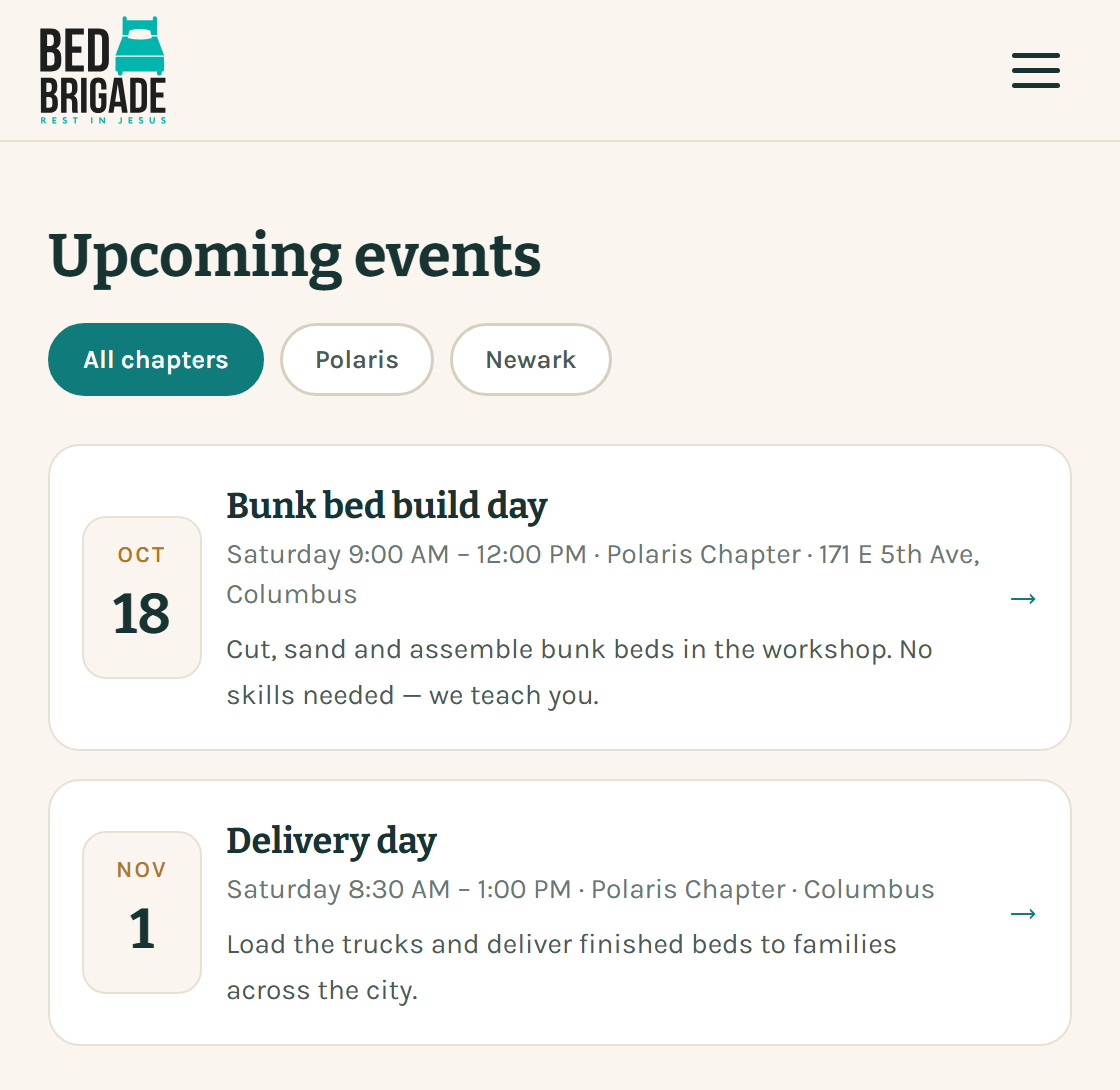
Pick your date here first. You start the team from inside the event. -
Get yourself signed up first
If you have never volunteered with us, make your own volunteer profile first: your phone number, the code we text you, your name, and your waiver. Guide 1 walks through it. Come back here when you see Profile saved.
If you have volunteered before, tap Sign in on the event and carry on to the next step.
You do not have to sign up for the event twice. The button that makes your team also puts you on the list — see step 6.
-
Choose Start a group
On the event, under How are you signing up?, choose Start a group. A short form opens underneath.
DrawingSign up for this eventHow are you signing up?○ Just meSign up for your own spot.● Start a groupSign yourself up and get a link, QR code and short code to bring people with you.○ Join a groupSomeone sent you a link or a code.Drawing, not a photo. Choosing Start a group opens the team form below it. -
Name your team and say how many are coming
- Group name — this is what your people see when they open your invite, so use something they will recognise. "Third Street Church" or "Troop 219" or "the Alvarez family". It may already be filled in with your last name; change it if you like.
- How many people are you bringing, including yourself? A rough number is fine. Coordinators use it to work out how many beds and vehicles to plan for. Count yourself.
DrawingAbout your groupGroup nameThird Street ChurchYour team sees this when they open your invite.How many people are you bringing, including yourself?12A rough number is fine.Drawing, not a photo. The two boxes at the top of the team form. -
Ask for a vehicle if nobody in your group has one
There is a tick box on this form. It says, near enough word for word: Nobody in our group has a vehicle big enough to deliver a bed — we need one arranged for us.
Tick it if that is true of your group. A bed comes apart into flat pieces, but it still needs a van, an SUV with the seats folded down, a pickup, or something like that. A regular car will not do it.
Ticking the box does not stop you volunteering and it does not cost you anything. It tells the coordinator to sort a vehicle out for your group.
A small text box appears when you tick it. Use it if there is anything worth knowing — "two of us can drive but neither car is big enough", say. You can leave it empty.
DrawingDo you need a vehicle?Ticked: Nobody in our group has a vehicle big enough to deliver a bed — we need one arranged for us. Beds travel taken apart but still need a van, an SUV with the seats down, or a pickup.Anything they should know? (optional)Two of us can drive, but neither car is big enough.Drawing, not a photo. The vehicle tick box, and the note box that appears under it when you tick it. -
Tick your own waiver and make the team
If you have not ticked a waiver yet, it appears here. Tick it for yourself. The screen says so plainly: starting a team does not sign it for anybody else.
Tap Start the group and register me. That one button does two things: it signs you up for the event, and it creates your team.
DrawingStart your teamTicked: The volunteer waiver, for myself. Starting a group does not sign it for anyone else.Start the group and register meDrawing, not a photo. The waiver here is yours alone. The button signs you up and makes the team at the same time. You will see Third Street Church is ready — your team's name, whatever you called it.
-
Send the invite
Under Invite your team you get three ways to bring people in. They all lead to the same place. Use whichever suits how you talk to your group.
- A link. Tap Copy link and paste it into a group text, a WhatsApp group, an email or a Facebook post. Tapping it opens the join page with the code already filled in.
- A QR code. The square pattern on the screen. Hold your phone up at the front of a meeting and people point their cameras at it. Tap Save QR to print to put it on a flyer or a slide — it stays sharp at any size.
- A short code. Ten letters and numbers, big on the screen. Read it out and people type it in. Good over the phone, or from the front of a room.
DrawingInvite your teamInvite linkhttps://…/join?token=…Copy linkShare invite[ QR code square ]Save QR to printOr read out this code A1B2C3D4E5Copy codeDrawing, not a photo. The three ways to invite people. All three do the same thing. Send your people the joining guide along with the link. It shows them what to expect and what to do if it does not work.
-
Watch your team fill up
People appear on your team as they finish signing up. If someone says they joined and you cannot see them, they most likely stopped partway — usually before ticking the waiver. Ask them to open the link again and finish.
Nobody picks a job on the team route. Your team is placed together and the jobs are handed out on the day.
Questions people ask
- Can I just type in my people's names?
- No. Each person signs up themselves, because each person ticks their own waiver. Send the link instead.
- Does my invite stop working?
- It does not run out on its own. It can stop working if a coordinator closes your team, or if the event runs out of room. If someone tells you the code was refused, ask them to read you the message on their screen.
- Someone says the code does not work
- The code is ten characters, and the only letters it uses are A, B, C, D, E and F. So a letter that looks like an O is really a zero, and a G is probably a six. Spaces, dashes and capital letters do not matter. When in doubt, send them the link instead of reading out the code.
- Can I close the team, or cap it?
- Not from the volunteer app. Ask your chapter coordinator and they can do it.
- It says a team cannot be started for this event
- Some events are run nationally rather than by a chapter, and those do not take teams. You can all still sign up one by one and work side by side, or pick a chapter event on the events page.
- Someone in my group has no mobile phone
- Signing up needs a phone that can get a text. They can borrow one, or ask your chapter to add them by hand. Their chapter page has the number.
Who to ask
Your chapter coordinator is the person for anything about the event itself — spots, vehicles, closing your team. Their number is on your chapter page.