
Join a team someone invited you to
Someone sent you a link, held up a QR code, or read you a short code. Any of the three brings you to the same place. This takes about five minutes.
Have your phone with you. We text you a short code partway through.
-
Open the invite
Pick whichever one you were given:
- A link. Tap it. That is all — it fills in the code for you.
- A QR code. Open your phone's camera and point it at the square pattern. A little banner pops up. Tap that.
- A code. Ten letters and numbers. Go to the Join a team page and type it into the Team code box, then tap Find my team.
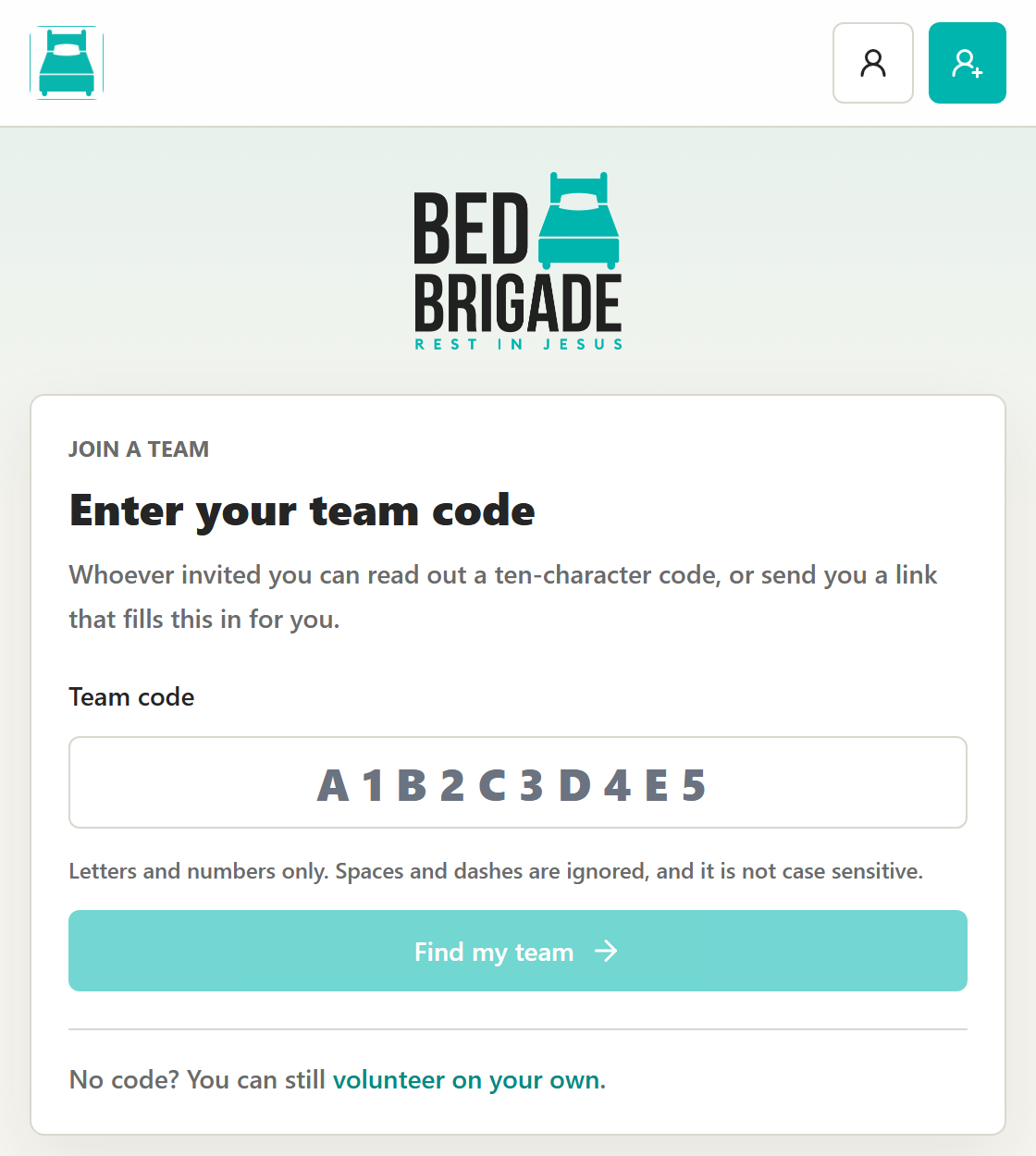
The Join a team page. Spaces, dashes and capital letters do not matter. -
Check it is the right team
Before you are asked for anything, the screen tells you whose team it is and what you are signing up for: the team's name, the first name of whoever invited you, the date, and where it is.
Read it. If it is not the group you expected, stop and ask the person who sent it.
DrawingYou have been invitedJoin Third Street ChurchDana invited you to volunteer together.Team Third Street ChurchOrganizer DanaWhen Saturday, October 18 · 9:00 AMWhere 171 E 5th Ave, ColumbusSign in to joinI'm new to Bed BrigadeDrawing, not a photo. What you see when the invite is recognised. Nothing has been signed yet at this point. You only ever see the first name of the person who invited you. That is on purpose.
-
Sign in, or make a profile
Volunteered before? Tap Sign in to join. Type your mobile number, tap Send code, then type in the code we text you.
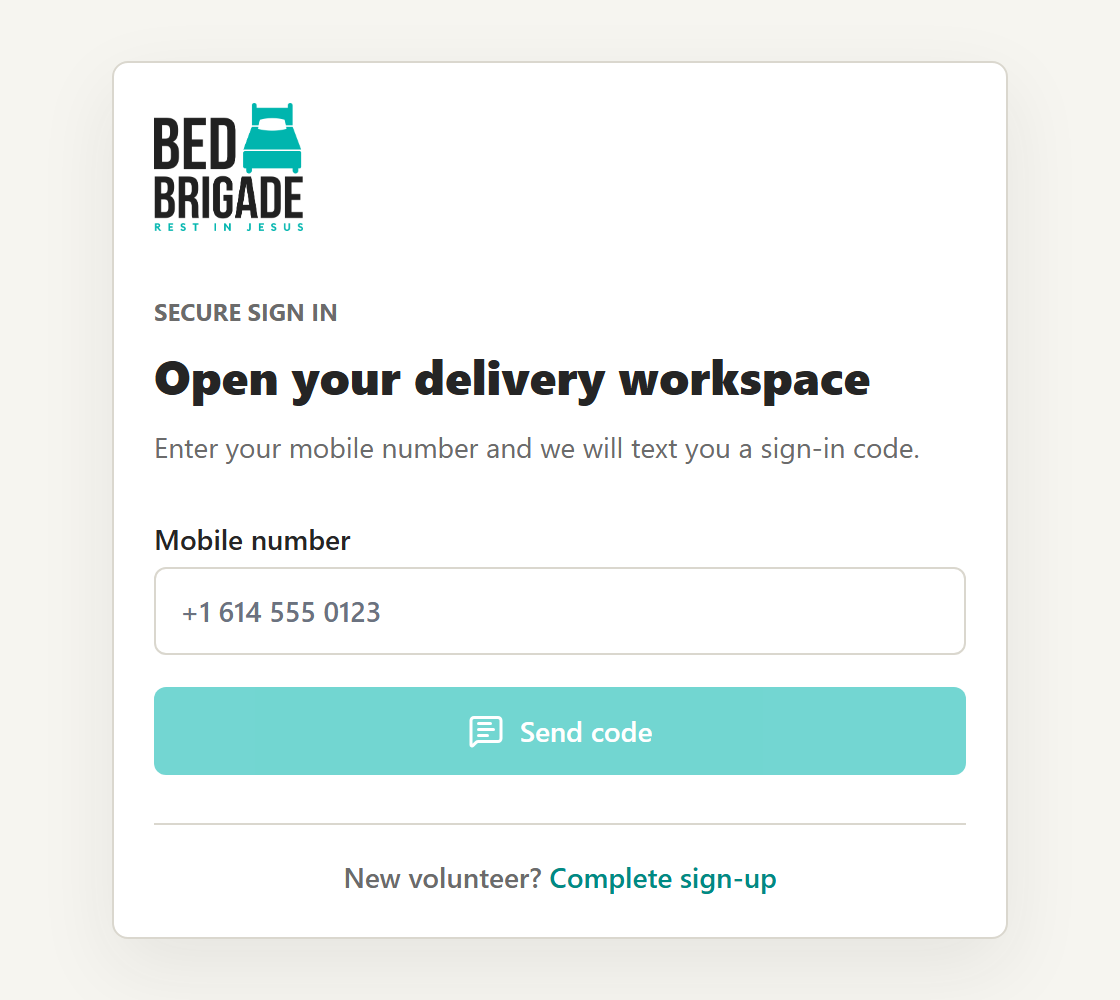
Signing in. There is no password — we text you a code instead. New to Bed Brigade? Tap I'm new to Bed Brigade. That takes you through making a volunteer profile: your phone number, your name, your email, and your waiver. Guide 1 walks through every screen.
Your invite is held while you do this. You come straight back to it.
Put in an email address
You need an email on file before you can be added to a team. If the join button stays greyed out, a missing email is the usual reason. Go back to your profile and add one.
-
Tick your two boxes and join
Back on the invite, there are two things to tick.
- The waiver. A short agreement saying you understand what volunteering involves — lifting, tools, riding in vehicles — and that you are choosing to take that on. Read what is on the screen. This is yours. Your team captain could not tick it for you, and that is why you are doing this yourself. If you have volunteered before, the screen tells you it is already on file and there is nothing to sign again.
- That you are signing yourself up for this event, and that Bed Brigade can contact you about it.
Then tap the join button — it has your team's name on it, like Join Third Street Church.
DrawingJoin Third Street ChurchTicked: The volunteer waiver. Yours alone.Ticked: I'm signing myself up for this event and agree to Bed Brigade contacting me about it.Join Third Street ChurchDrawing, not a photo. The last screen before you are on the team. -
You're done
The screen says You're on Third Street Church — your team's name. Your captain can now see you on their list.
You are not asked to pick a job. On a team, everyone is placed together and the jobs are handed out on the day. Just turn up.
When the invite does not work
Find the message closest to what is on your screen. Almost all of these are fixed by your team captain, not by us.
"We could not find that invite"
The code does not match any team. Usually one character was typed wrong.
Do this: Check it character by character, then ask your team captain to send you the link instead of the code.
"This invite has expired"
The link stopped working. The team is still there.
Do this: Ask your team captain for a fresh link.
"This invite was cancelled"
Your captain turned that link off on purpose.
Do this: Check with them before you join. They may have a newer link, or a reason.
"The team is closed to new members"
The team has stopped taking people.
Do this: Ask your captain whether they can reopen it. In the meantime you can still sign up for the same event on your own and work alongside them.
"The team is full"
Every spot on that team is taken.
Do this: Ask your captain whether they can make room, or sign up on your own for the same event.
"The event ran out of room"
The team has space but the event itself does not.
Do this: Ask your captain to check with the chapter coordinator. Events sometimes open more places closer to the day.
"You are already on another team for this event"
You joined a different team for the same day. You can only be on one.
Do this: Stay where you are, or ask that team’s captain — or a chapter coordinator — to move you across. Only they can do it.
"You have already joined this team"
It went through somewhere else — another phone, or another browser tab.
Do this: Nothing to do. You are on the team.
"Your volunteer details are not finished"
Something is missing from your profile — usually your email, or the waiver.
Do this: Tap the button to finish your profile. Your invite is held while you do.
"This event is no longer available"
The event has closed or already happened.
Do this: Pick another date on the events page, and tell your captain the invite is out of date.
"Too many attempts just now"
Too many tries in a short time. Nothing you typed was lost.
Do this: Wait about a minute and try again.
One thing about the code
The code is ten characters long, and the only letters in it are A, B, C, D, E and F. So a letter that looks like an O is really a zero, an I is a one, and a G is probably a six. Spaces, dashes and capital letters make no difference.
Who to ask
Ask your team captain first. They are the person who sent you the invite, and nearly everything on this list is something only they can fix — resending the link, reopening the team, making room.
If you cannot reach them, or if they have tried and it still will not work, call your local chapter. The number is on your chapter page.
You can always sign up on your own. If joining the team is not working, sign up for the same event by yourself and work alongside them on the day. Nobody minds, and it is the same event. Here is how.